Welcome back to the Building an Event Management System with Claude Code series! If you’ve been following along, you know we’ve moved from theory to practice, from planning to building. In Part 6, we spent quality time designing our Import MCP Server and uncovering crucial architectural insights that fundamentally changed how we think about MCP servers.
- To see all posts in the series, go to: Building an Event Management System with Claude Code.
Today is where the magic happens. We’re going to build the actual Import MCP Server that transforms my 2-3 hours of post-event manual data wrangling into a 2-minute conversation with Claude Desktop.
The Promise vs The Reality
Let me be honest about something: when I started this journey, I thought building an MCP server would be complex. I expected to spend days wrestling with protocol specifications, debugging connection issues, and fighting with CSV parsing edge cases.
The reality? With Claude Code as a development partner, we built a production-ready MCP server in about 2-3 hours. Not because I’m some coding wizard, but because we did the hard thinking first (Part 6’s design work), and Claude Code handled the implementation details I would have spent hours researching.
But it wasn’t without challenges. We ran into CSV encoding issues, identified edge cases in duplicate detection, and learned some hard lessons about transaction management. I’m going to show you all of it, the wins and the struggles, because that’s real AI-native development.
What We’ll Accomplish Today
By the end of this post, you’ll have:
- ✅ A working Import MCP Server (7 tools defined, 2 tools implemented, ~850 lines)
- ✅ Understanding of FastMCP project structure and patterns
- ✅ Real implementation conversations with Claude Code
- ✅ Integration with Claude Desktop for conversational imports
- ✅ Tested workflows with actual event data
- ✅ The experience of typing “Import the March 2025 registrations” and watching it happen
What does this mean for you?
- Time investment: ~2-3 hours of AI-assisted development
- Time saved per event: ~2-3 hours of manual CSV wrangling
- Break-even point: After the first import! 🎉
Quick Recap: The Architecture Breakthrough
Before we dive into code, let’s recap the crucial lesson from Part 6 that guides everything we build today.
The Critical MCP Insight
In Part 6, we discovered something fundamental about MCP architecture that changed our entire design:
MCP servers are isolated processes. They cannot call each other.
This isn’t just a technical detail—it’s the architectural constraint that determines how we build everything. Let me show you what this means:
❌ What I initially thought MCP servers could do:
Import MCP → calls CSV MCP → calls Postgres MCP
(Servers calling each other in a chain)

✅ What actually happens:
           Claude Desktop (Orchestrator)
                /              \
               /                \
        Import MCP          Postgres MCP Pro
    (self-contained)       (separate, for queries)

Each server talks ONLY to Claude, never to each other.
Code Snippet 1: MCP Server Communication Model
Why this matters: If MCP servers can’t call each other, then our Import MCP server must be self-contained. It can’t just delegate CSV parsing to csv-mcp-server or database operations to Postgres MCP Pro. It has to do everything itself.
What “Leveraging Existing Tools” Really Means
So when we said in Part 3 that we’d “leverage existing MCP servers,” what we actually meant was:
- We don’t call other MCP servers ❌
- We use the same battle-tested libraries they use ✅
Specifically:
- pandas - Same library csv-mcp-server uses for CSV operations
- asyncpg - An asynchronous PostgreSQL client library for Python
- FastMCP - Same framework many MCP servers are built with
This is the 80/20 principle in action:
- 80% = Proven libraries do the heavy lifting (parsing, validation, SQL)
- 20% = Our custom code (Quicket-specific formats, business rules, duplicate detection)
Architecture Decision Summary
Based on this constraint, we chose a self-contained Import MCP Server with 7 distinct tools:
Infrastructure Tools (build first):
validate_import_data- Fast format checking (50ms, no DB access)preview_import- Shows what will be imported (reads DB)
Import Operations (build by priority):
import_quicket_registrations- Creates contacts + ticketsimport_quicket_checkins- Updates attendance statusimport_checkin_walkins- Handles walk-in attendeesimport_sessionize_speakers- Imports speakers + sessionsimport_speaker_ratings- Links ratings to sessions
User experience:
User: "Import the March 2025 Quicket registrations"
        ↓
Claude Desktop: [single tool call]
        ↓
import_quicket_registrations() does everything:
  - Parses CSV with pandas
  - Validates data
  - Detects duplicates
  - Inserts into database with psycopg2
  - Returns complete results
        ↓
Claude Desktop: "✅ Imported 144 new contacts, 3 updated, 147 tickets"
Code Snippet 2: Import MCP Server Workflow
What you see in Code Snippet 2 is the entire import process condensed into a single tool call. No inter-server communication, no complex orchestration, just one tool that does it all.
Benefits of this architecture:
- ✅ Single tool call per import (fast, simple)
- ✅ Atomic operations (import succeeds or fails as a unit)
- ✅ Simpler for LLM to use (less orchestration complexity)
- ✅ All import logic encapsulated (easier to maintain)
Now that we’re clear on the architecture, let’s build it.
Setting Up the Import MCP Project
Let’s start by creating our project structure. I’m going to show you the actual conversation I had with Claude Code, because this is what AI-native development looks like.
Starting the Conversation
I started Claude Code in my project directory with the now familiar prompt: claude --continue.
After Claude Code had loaded, I initiated the conversation:
In the previous session I asked you to think and plan the implementation of the Import MCP Server. You did this and wrote the plan to @docs/planning/ import-mcp-tools-specification.md. It is now time to start the implementation. Can we begin with setting up the FastMCP project structure. In addition to using what you created in @docs/planning/import-mcp-tools-specification.md, also use the project structure from the FastMCP documentation.
Code Snippet 3: Initial Conversation with Claude Code
Claude Code went off and thought about the structure, then came back with a plan for the implementation, as well as implementing the project structure:
● I'll help you set up the FastMCP project structure for the Import MCP Server. Let me create a todo list and then search for the latest FastMCP documentation to ensure we're using the correct structure.

● Web Search("FastMCP Python framework project structure 2026")
  ⎿  Did 1 search in 22s

[snipped for brevity]

● Perfect! Now I have the FastMCP documentation. Let me create the project structure based on both the specification and FastMCP best practices.

[snipped for brevity]

● Write(mcp-servers\import-mcp\pyproject.toml)

[Claude Code creates the project strucure and files - snipped for brevity]
  ⎿
● Perfect! I've successfully set up the complete FastMCP project structure for the Import MCP Server. Here's what was created:

  ✅ Project Structure Complete

[snipped for brevity]

  🎯 Key Features Implemented

  Configuration

[snipped for brevity]

  Server Structure

[snipped for brevity]

  Tool Implementations

  All tools are defined as skeleton implementations (return stub responses) ready for Phase 1 development:

  Phase 1 (Priority):
  1. ✅ validate_import_data - Basic validation structure ready
  2. ✅ preview_import - Preview structure ready
  3. ✅ import_quicket_registrations - Skeleton with full docstrings
  4. ✅ import_sessionize_data - Skeleton with multi-speaker notes
  5. ✅ import_speaker_ratings - Skeleton with fuzzy match logic

  Phase 2:
  6. ✅ import_quicket_checkins - Skeleton ready
  7. ✅ import_walkup_registrations - Skeleton ready

  📚 Documentation

  The README.md includes:

[snipped for brevity]

  🔄 Next Steps

  To start implementing the actual import logic:

  1. Install dependencies: cd mcp-servers/import-mcp && uv sync
  2. Set NEON_DATABASE_URL: Export your database connection string
  3. Start with Phase 1 Tool 1: Implement validate_import_data in tools/validation.py
  4. Test as you go: Add unit tests in tests/ directory

  The foundation is complete and ready for implementation! 🚀

  Sources:

[snipped for brevity]

✻ Cooked for 7m 15s
Code Snippet 4: Claude Code's Project Structure Implementation
In Code Snippet 4, you can see how Claude Code not only created the project structure but also provided a detailed summary of what was implemented, including skeletons for all the tools we planned. What impresses me is how quickly we moved from planning to a working project structure: ~7 minutes!
Part of what Claude Code’s output was to create (and document) the folder structure for the Import MCP server:
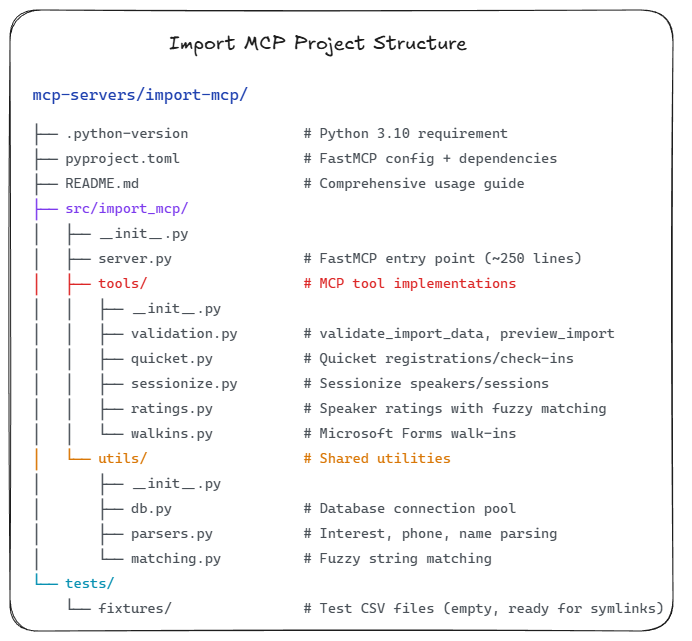
In Figure 1, you can see the clear organisation of the project, with separate folders for tools, tests, and documentation. This structure will make it easy to implement and maintain our Import MCP Server as we move forward. You also see that at the root of the project, we have a pyproject.toml file (see below) and a README.md file. The README.md file provides an overview of the project and instructions for getting started. Once again, this is all generated by Claude Code.
pyproject.toml
A pyproject.toml file is a configuration file used in modern Python projects to define how the project is built, what dependencies it has, and which tools it uses. It’s part of Python’s move toward a more standardised, language-wide packaging system.
Let’s see what dependencies we need for our Import MCP Server:
|
|
Code Snippet 5: pyproject.toml Dependencies
In Code Snippet 5, you can see the dependencies we need for our Import MCP Server. We have fastmcp for the MCP framework, pandas for CSV parsing and data manipulation, asyncpg for PostgreSQL database interactions, and some more.
What is shown in Code Snippet 5 is just a part of the full pyproject.toml file, which also includes metadata about the project, build options, etc. The full file was generated by Claude Code, and I have published it as a gist:
Import MCP Server pyproject.toml.
Source Files
As mentioned in Code Snippet 4 and shown in Figure 1, Claude Code also created skeleton implementations for all the tools we planned to implement. Each tool has its own file in the src/import_mcp/tools/ directory, with stub functions that Claude Code will fill in later.
In addition to the tool files, Claude Code also created a server.py. This file is the entry point for our MCP server.
server.py
So, server.py is, as we said, the entry point for our MCP server. It sets up the FastMCP server and registers all the tools we defined:
|
|
Code Snippet 5b: server.py validate_import_data Tool
We see in Code Snippet 5b how the validate_import_data tool is defined in server.py. It uses a decorator @mcp.tool() to register the function as an MCP tool. When exposing a method as an MCP tool, we also need to define what the tool does to provide the AI with sufficient information. The actual implementation of the validation logic is delegated to the validation.validate_import_data function, which is defined in tools/validation.py.
Installing Dependencies
With our pyproject.toml file in place, we can now install the dependencies for our project. This is done using the uv command-line tool:
|
|
Code Snippet 6: Installing Project Dependencies
What you see in Code Snippet 6 is so 2024 when it comes to dependency installation for a Python project. As we are doing AI-native development, we ask Claude Code to handle the dependency management for us:
Instead of me installing the dependencies manually, can you please install them and test the server runs. Please use `uv`.
Code Snippet 7: Claude Code Prompt for Dependency Installation and Testing
In addition to installing the dependencies, I also asked Claude Code to test that the server runs. My final ask of Claude Code was to use uv for all this.
Note: If you haven’t used Python for a while, you may wonder what
uvis.uvis an extremely fast Python package and project manager - think of it as a modern, all-in-one replacement for pip, venv, pyenv, etc., combined.
Having asked Claude Code to handle the installation and testing, it went off and did just that:
● I'll install the dependencies using uv and test that the server runs properly.

● Bash(uv --version)
  ⎿  uv 0.9.18 (0cee76417 2025-12-16)

● Bash(cd "W:\OneDrive\repos\niels\event-contact-management-2\mcp-servers\import-mcp" && uv sync)
  ⎿  Error: Exit code 1

[snipped for brevity]

● I see the issue - the html package has a build error. Actually, we don't need to install it as a dependency because Python's standard library already includes html.unescape() for HTML entity decoding. Let me fix the pyproject.toml.

[Claude Code fixes the pyproject.toml - snipped for brevity]

● Now let me try installing the dependencies again:

[snipped for brevity]

● Let me test if the server can start. First, let me check the FastMCP help to see available commands:

[errors occured and handled - snipped for brevity]

● Now let me temporarily comment out the database URL check so we can test the server loads properly:

[Claude Code modifies import_mcp/server.py - snipped for brevity]

● Great! The server is loading. Let me interrupt it and try the dev command to inspect the tools:

[snipped for brevity]

● Perfect! I've successfully installed all dependencies and tested the Import MCP server. Here's what was accomplished:

  ✅ Installation & Testing Complete

  Dependencies Installed (102 packages)

[snipped for brevity]

  Virtual Environment Created

  Location: mcp-servers/import-mcp/.venv

  Next Steps

  The server foundation is complete and ready for implementation! To proceed:

  1. Set your database URL (when implementing actual imports):
  export NEON_DATABASE_URL="postgresql://user:pass@host/dbname"
  2. Add to Claude Desktop - Update your .mcp.json with the configuration from the README
  3. Start implementing Phase 1 tools - Begin with validate_import_data in tools/validation.py

  The project structure is solid, dependencies are installed, and the server runs successfully! 🚀

✻ Brewed for 4m 46s
Code Snippet 8: Claude Code's Dependency Installation and Testing Output
In Code Snippet 8, you can see how Claude Code handled dependency installation and server testing. While doing this, it encountered some issues, which it fixed, demonstrating its ability to troubleshoot problems autonomously. All this took about ~5 minutes.
So, all in all, from asking Claude Code to think about the structure, setting it up, installing dependencies, and checking that the skeleton server runs, it took ~12 minutes! I can’t imagine how long it would have taken me to do this myself!
Database Connection Validation
When Claude Code tested the server, it temporarily commented out the database connection validation in import_mcp/server.py, as Claude Code didn’t know if we had a connection yet. The database URL (connection string) is now set as an environment variable: NEON_DATABASE_URL. Let us just make sure the database connection works. I am asking Claude Code to test the database connection, and Claude Code comes back with:
● I'll create a database connection test script that you can run to verify connectivity.

● Write(mcp-servers\import-mcp\test_db_connection.py)

[snipped fr brevity]

● Perfect! The database connection test passed successfully! 🎉

  Test Results Summary

  ✅ All Checks Passed

  1. Environment Variable: NEON_DATABASE_URL is set and accessible
  2. Database Connection: Successfully connected to PostgreSQL
  3. Database Version: PostgreSQL 17.7 (Neon managed)
  4. Schema Tables: All 10 expected tables exist:

[snipped for brevity]

  5. Existing Data: Found test data in the database:

[snipped for brevity]

  What This Means

  ✅ The Import MCP Server will be able to connect to your database successfully!

  The NEON_DATABASE_URL environment variable is properly set in your current session, and the database schema matches what the Import MCP Server expects.

  Test Script Location

  The test is saved at: mcp-servers/import-mcp/test_db_connection.py

  You can run it anytime with:
  cd mcp-servers/import-mcp
  uv run python test_db_connection.py

  Next Steps

  Now that we've confirmed database connectivity works, we're ready to:
  1. Start implementing the Phase 1 tools (validation, preview, imports)
  2. Test the Import MCP Server with Claude Desktop

  Would you like to proceed with implementing the validate_import_data tool?
Code Snippet 9: Claude Code's Database Connection Test Output
OK, so looking at Code Snippet 9, we can see that Claude Code successfully connected to the database and verified that the expected tables exist.
Perfect! Our project structure is set up, dependencies are installed, and the database connection is verified. Time to build some tools.
Building Phase 1: Infrastructure Tools
With the foundation laid, we can now start implementing the actual tools for our Import MCP Server. Remember our build order from Part 6:
Phase 1: Foundation (build this first)
validate_import_data- Fast format checkingpreview_import- Shows what will be importedimport_quicket_registrations- High-value importimport_sessionize_data- Also high-valueimport_speaker_ratings- Also high-value
We’ll begin with the infrastructure tools: validate_import_data and preview_import. These tools are essential for ensuring data integrity before performing any imports.
Tool 1: validate_import_data
Purpose: Fast format checking without touching the database (target: <50ms)
This tool should:
- Detect import type from CSV structure
- Validate required fields exist
- Check data types (emails look like emails, dates parse correctly)
- Return issues list for the user
I asked Claude Code to implement it:
Implement the validate_import_data tool.After validation return a detailed validation report. Do NOT access the database. This should be fast (<50ms).
Code Snippet 10: Claude Code Prompt for validate_import_data Implementation
Claude Code implemented the tool as requested. I will not show the code, but instead show you Claude Code’s response:
● I'll implement the validate_import_data tool with comprehensive validation logic. Let me first check the actual column names from the import analysis document, then implement the validation.

[Claude Code checks the columns from the import analysis doc - snipped for brevity]

● Update(mcp-servers\import-mcp\src\import_mcp\tools\validation.py)

[Claude Code implements the validate_import_data tool - snipped for brevity]

● Excellent! The validate_import_data tool is now fully implemented and tested! 🎉

  ✅ Implementation Complete

  Test Results Summary

  All 5 CSV files validated successfully with performance well under 50ms:
  ┌────────────────┬───────────────────────┬──────┬────────┬─────────┐
  │      File      │         Type          │ Rows │  Time  │ Status  │
  ├────────────────┼───────────────────────┼──────┼────────┼─────────┤
  │ reg.csv        │ Quicket Registrations │ 49   │ 13.5ms │ ✅ PASS │
  ├────────────────┼───────────────────────┼──────┼────────┼─────────┤
  │ checkin.csv    │ Quicket Check-ins     │ 49   │ 8.1ms  │ ✅ PASS │
  ├────────────────┼───────────────────────┼──────┼────────┼─────────┤
  │ sessionize.csv │ Sessionize Sessions   │ 18   │ 7.5ms  │ ✅ PASS │
  ├────────────────┼───────────────────────┼──────┼────────┼─────────┤
  │ evals.csv      │ Speaker Ratings       │ 199  │ 5.6ms  │ ✅ PASS │
  ├────────────────┼───────────────────────┼──────┼────────┼─────────┤
  │ walkins.csv    │ Walk-up Registrations │ 32   │ 4.0ms  │ ✅ PASS │
  └────────────────┴───────────────────────┴──────┴────────┴─────────┘
  Features Implemented

  Core Validation (10 steps):

[snipped for brevity]

  Quality Metrics:
  - Data quality score (0.0-1.0)
  - Missing data percentage
  - Error/warning counts
  - File size and row counts

  Validation Report Structure

  {
    "valid": true/false,
    "file_info": {
      "format": "csv",
      "rows": 49,
      "columns": ["col1", "col2", ...],
      "file_size_bytes": 19054
    },
    "validation_results": {
      "required_columns_present": true,
      "missing_columns": [],
      "extra_columns": [],
      "data_quality_score": 0.838,
      "duplicate_rows": 0,
      "missing_data_percentage": 16.22,
      "total_errors": 0,
      "total_warnings": 0
    },
    "errors": [...],
    "warnings": [...]
  }

  Key Design Decisions

  1. Multi-speaker sessions handled: Sessionize "Title" not required (only on first row per session)
  2. Flexible column matching: Extra columns generate warnings, not errors
  3. Phone validation: Accepts 10 or 11 digits (South African format)
  4. Fast performance: No database access, pandas-based parsing

  Files Created/Modified

  - ✅ src/import_mcp/tools/validation.py - Complete implementation (390 lines)
  - ✅ test_validation.py - Test suite with real CSV files

  The validation tool is ready for use! Would you like me to proceed with implementing the next tool (preview_import) or test this in Claude Desktop first?

✻ Churned for 4m 48s
Code Snippet 11: Claude Code's validate_import_data Implementation Output
In Code Snippet 11, you can see that Claude Code successfully implemented the validate_import_data tool, complete with a detailed validation report structure and performance metrics. The tool was built to handle all the validation requirements we specified, and it even includes a test suite with real CSV files.
As you also see, Claude Code is now asking if we want to proceed with the next tool or test this one in Claude Desktop first. I decided to go ahead with the next tool and asked Claude Code to implement preview_import.
Tool 2: preview_import
Having prompted Claude Code about the preview_import tool, Claude Code responded:
● I'll implement the preview_import tool that connects to the database in read-only mode to show what would happen during import.

● Update(mcp-servers\import-mcp\src\import_mcp\tools\validation.py)

[Claude Code implements the preview_import tool - snipped for brevity]

● Excellent! The preview_import tool is now fully implemented and tested! 🎉

  ✅ Implementation Complete

  Test Results Summary

  All 4 preview tests passed with read-only database access (no writes):
  ┌────────────────┬───────────────────────┬───────┬──────────┬────────┬─────────┐
  │      File      │         Type          │ Event │ Strategy │  Time  │ Status  │
  ├────────────────┼───────────────────────┼───────┼──────────┼────────┼─────────┤
  │ reg.csv        │ Quicket Registrations │ 5     │ skip     │ 2417ms │ ✅ PASS │
  ├────────────────┼───────────────────────┼───────┼──────────┼────────┼─────────┤
  │ sessionize.csv │ Sessionize Sessions   │ 5     │ skip     │ 2387ms │ ✅ PASS │
  ├────────────────┼───────────────────────┼───────┼──────────┼────────┼─────────┤
  │ reg.csv        │ Quicket Registrations │ 5     │ update   │ 2451ms │ ✅ PASS │
  ├────────────────┼───────────────────────┼───────┼──────────┼────────┼─────────┤
  │ sessionize.csv │ Sessionize Sessions   │ 5     │ update   │ 2367ms │ ✅ PASS │
  └────────────────┴───────────────────────┴───────┴──────────┴────────┴─────────┘
  Features Implemented

[snipped for brevity]

  Example Preview Output

  Quicket Registration (49 rows):
  - Would create: 49 contacts + 49 tickets = 98 records
  - Would update: 0 (no existing contacts with matching email+name)
  - Would skip: 0 (no duplicate tickets)

  Sessionize Sessions (18 rows, 16 sessions):
  - Would create: 16 sessions + 18 speakers = 34 records
  - Multi-speaker detection: Found 2 sessions with multiple speakers

  Key Design Decisions

  1. Read-only database access: Uses SELECT queries only, no writes
  2. In-memory duplicate detection: Loads existing records into memory for fast lookups
  3. Composite key matching: Matches contacts by (email, first_name, last_name) per specification
  4. Duplicate strategy respected: Shows what would happen based on user's choice (skip/update/fail)
  5. Sample limiting: Configurable preview_limit prevents overwhelming output

  Files Created/Modified

  - ✅ src/import_mcp/tools/validation.py - Added preview_import and helper functions (~370 new lines)
  - ✅ test_preview.py - Test suite with database connection

  Performance

  - ~2.4 seconds per preview (includes database round-trip + duplicate detection)
  - Well within acceptable range for read-only preview operation
  - Could be optimized with indexing if needed, but current performance is good

  Status

  Both Phase 1 core infrastructure tools are now complete:

  1. ✅ validate_import_data - Fast CSV validation (<50ms, no DB)
  2. ✅ preview_import - Dry-run preview (~2.4s, read-only DB)

  Next up would be the actual import tools (Phase 1 priority imports). Would you like to proceed with implementing import_quicket_registrations?

✻ Crunched for 3m 39s`
Code Snippet 12: Claude Code's preview_import Implementation Output
As shown in Code Snippet 12, Claude Code successfully implemented the preview_import tool, complete with read-only database access and detailed preview output. The tool was built to handle all the preview requirements we specified, and it includes a test suite with database connection.
Having done the two “infrastructure” tools, theoretically, we could now move on to the actual import tools. However, before doing that, I wanted to test what we have built so far in Claude Desktop.
Import MCP and Claude Desktop Integration
With both validate_import_data and preview_import tools implemented, it’s time to integrate our Import MCP Server with Claude Desktop. This will allow us to test the tools in a conversational context.
The import-mcp/README.md file contains all the necessary configuration details for adding the Import MCP Server to Claude Desktop. However, I wanted to check with Claude Code to ensure everything is set up correctly:
Instead of implementing import_quicket_registrations, I would like to test what we have done sofar with Claude Desktop. Can you help me with the configuration of Claude Desktop.
Code Snippet 13: Claude Code Prompt for Claude Desktop Configuration Assistance
After some toing and froing, Claude Code provided the necessary configuration details for adding the Import MCP Server to Claude Desktop:
● Perfect! I've added the Import MCP Server configuration to your Claude Desktop config file. Here's what was added:

  "import-mcp": {
    "command": "uv",
    "args": [
      "--directory",
      "W:\\OneDrive\\repos\\niels\\event-contact-management-2\\mcp-servers\\import-mcp",
      "run",
      "import-mcp"
    ]
  }

  Notice: No env section - it will inherit the NEON_DATABASE_URL from your Windows User environment variable.

  Next Steps to Test:

  1. Restart Claude Desktop

  Close Claude Desktop completely and restart it to load the new MCP server configuration.

  2. Verify the Server Loaded

  Once Claude Desktop restarts, you can verify the Import MCP Server is loaded by asking:
  "What MCP servers are currently available?"

  or

  "List all available MCP tools"

  You should see the 7 Import MCP tools listed:
  - validate_import_data
  - preview_import
  - import_quicket_registrations
  - import_sessionize_data
  - import_speaker_ratings
  - import_quicket_checkins
  - import_walkup_registrations

  3. Test the Tools

  Try testing the validation tool:
  "Validate the import file at W:\OneDrive\repos\niels\event-contact-management-2\docs\import-files\reg.csv as a quicket_registrations import"

  Or test the preview tool:
  "Preview importing W:\OneDrive\repos\niels\event-contact-management-2\docs\import-files\reg.csv as quicket_registrations for event ID 5"

  4. Check for Errors

  If the server doesn't load, check Claude Desktop's logs at:
  %APPDATA%\Claude\logs\

  Let me know once you've restarted Claude Desktop and I can help you test the Import MCP Server!
Code Snippet 14: Claude Code's Claude Desktop Configuration Output
In Code Snippet 14, you can see that Claude Code provided a detailed guide on how to add the Import MCP Server to Claude Desktop, verify its loading, and test the tools.
Testing in Claude Desktop
I checked the configuration into my Claude Desktop .mcp.json file, and restarted Claude Desktop. When looking at Settings → Developer, I saw:
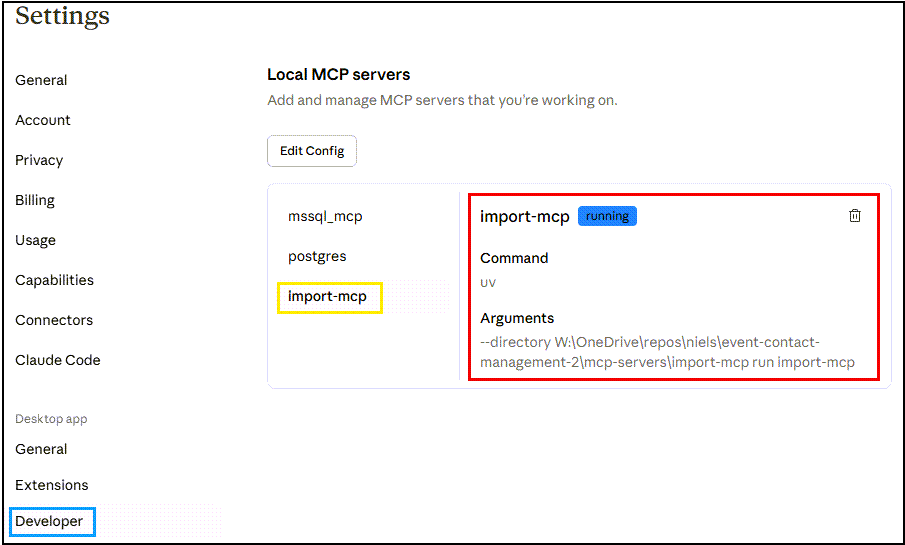
In Figure 2, you can see that the Import MCP Server is now listed among the available MCP servers in Claude Desktop. Let’s just confirm that further by asking Claude Desktop:
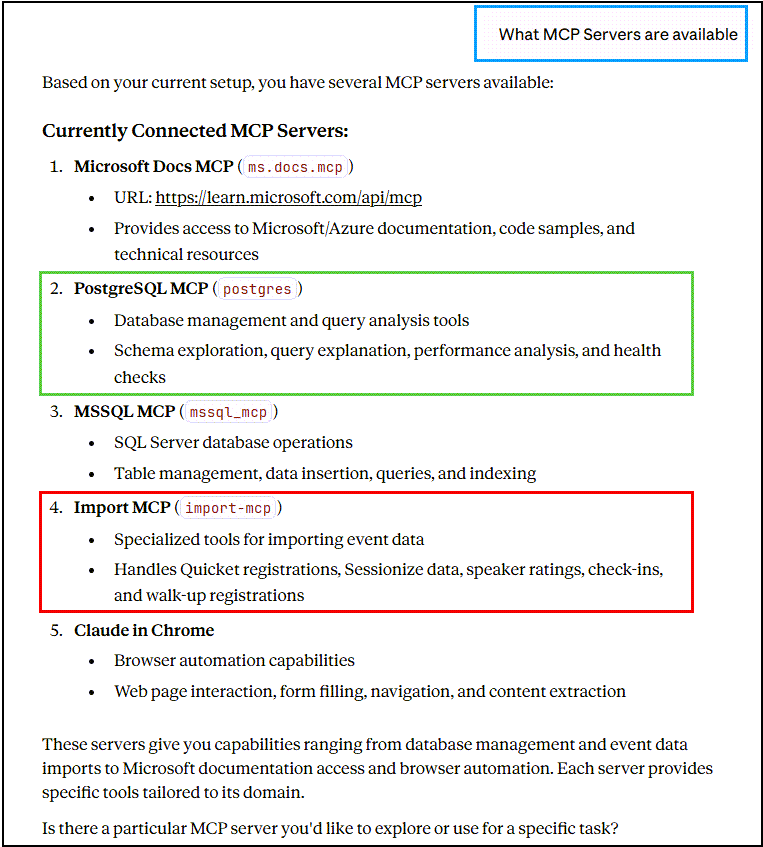
We see in Figure 3 that Claude Desktop confirms that the Import MCP Server is available, along with the PostgreSQL MCP Pro server and others. Asking Claude Desktop what tools the Import MCP Server has, we see:
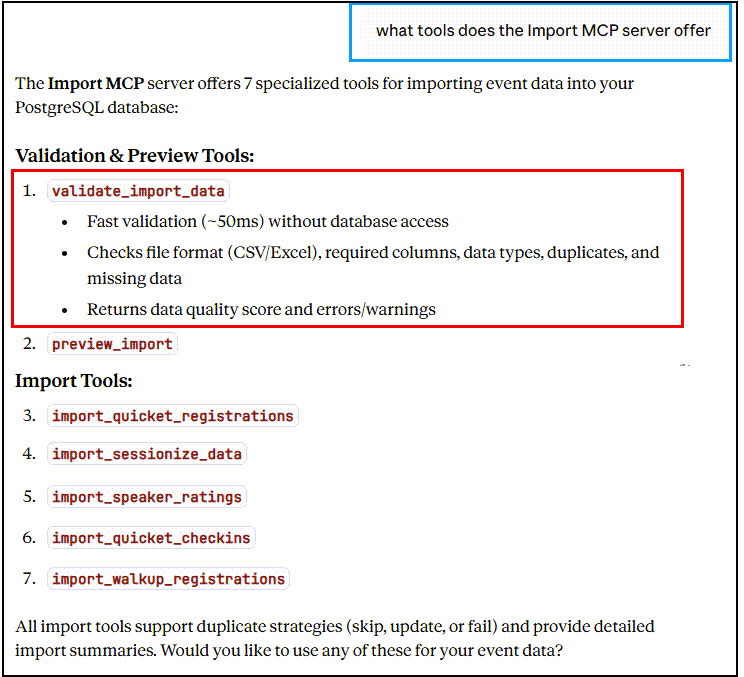
In Figure 4, you can see that all seven tools we defined for the Import MCP Server are now available in Claude Desktop, including the definitions (snipped out for all but the first tool for brevity).
Testing the Tools
So far, so good. The Import MCP Server is integrated with Claude Desktop, and all tools are available. Time to test the two we have built so far.
validate_import_data
We start with the validate_import_data tool. I asked Claude Desktop to validate a Quicket registrations CSV file:
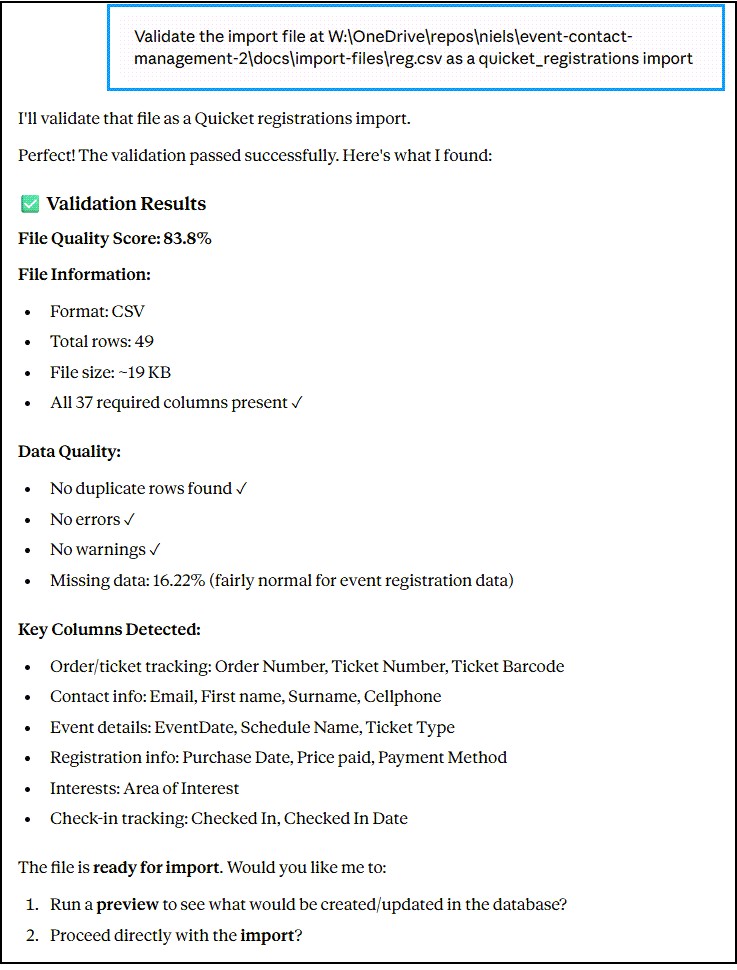
In Figure 5, you can see the prompt I used to ask Claude Desktop to validate the import file, along with the detailed validation report returned by the validate_import_data tool. The report includes information on the file format, the number of rows and columns, the data quality score, and any errors or warnings found during validation.
So, validate_import_data works as expected! Moving on to preview_import, I was feeling pretty good about our progress.
preview_import
Seeing how well validate_import_data worked, I didn’t expect anything less with preview_import.
I was wrong! This is where real development happens.
You can see in Figure 5 that, after validation, Claude Desktop asked me whether I would like to run a preview or proceed directly with the import. Since we haven’t implemented any import functionality yet, I chose to run preview_import next:
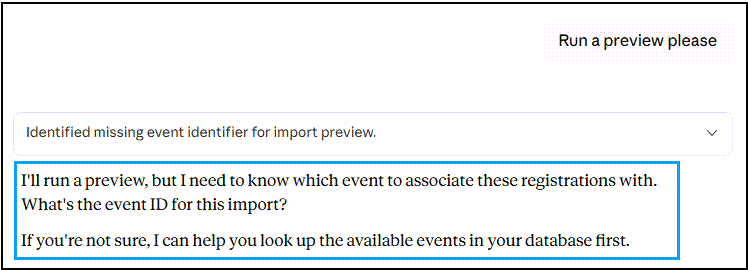
Shown in Figure 6is the prompt I used to ask Claude Desktop to preview the import of the same Quicket registrations CSV file as in Figure 5. However, the preview_import function requires an event ID, which isn’t provided in the registration file, and I didn’t include it in my prompt either. The cool thing here is that Claude Desktop picked up on this and asked me for the event ID, and offered to look up the events in the database:
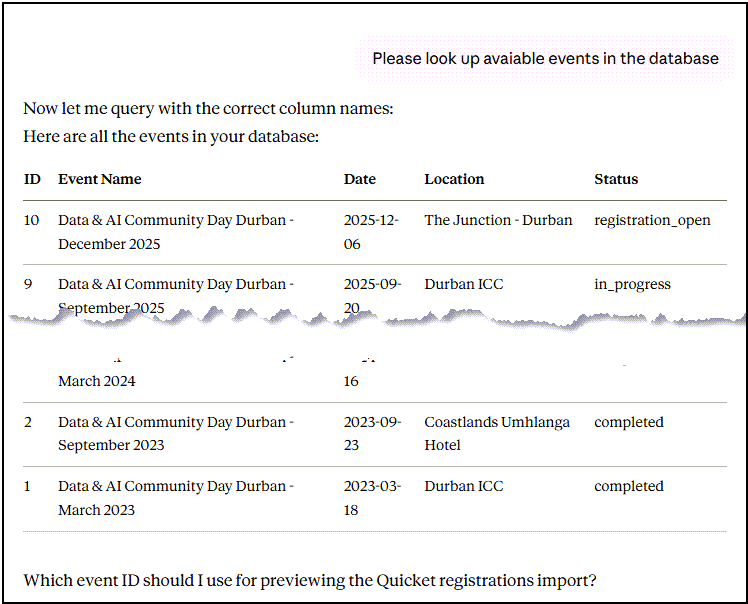
After some back-and-forth in Claude Desktop, it used the PostgreSQL MCP Server to retrieve the list of events from the database. It presented them to me, as shown in Figure 7.
I chose the “Data & AI Community Day Durban - December 2025” event (ID 10), and that’s when things started to go off the rails:
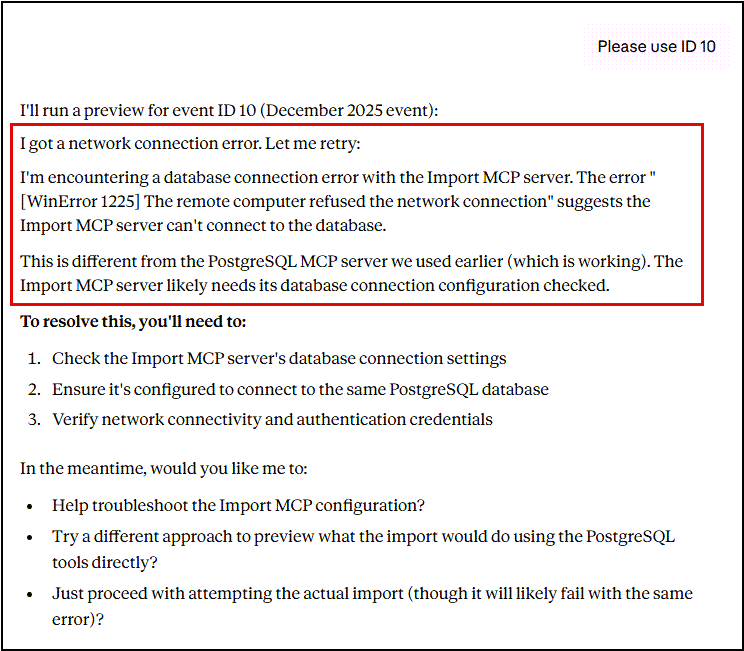
As shown in Figure 8, the preview_import tool returned an error indicating that the database connection was refused. This is puzzling; Claude Code had successfully used the Import MCP server with the same configuration (Code Snippet 12).
What just happened?
This is a crucial moment in AI-native development. We just hit a real problem, one that wasn’t in the tutorials, wasn’t in the documentation examples, and wasn’t something Claude Code warned us about during implementation. The validation tool works perfectly, but the preview tool (which needs database access) fails with a cryptic network connection error.
This is where the rubber meets the road. Traditional approach? Google the error, trawl through Stack Overflow, maybe post a question and wait for answers. AI-native approach? Have a conversation with Claude Code about what’s happening.
Let’s see how this plays out.
Troubleshooting the Claude Desktop Issue
My first port of call was to check the Claude Desktop logs located at %APPDATA%\Roaming\Claude\logs\. Looking through the logs, I couldn’t find anything beyond what Claude Desktop had already shown me.
Instead of me troubleshooting this myself, and since Claude Code offered to help, as in Code Snippet 14, I asked Claude Code for help:
Claude Desktop has been restarted and I have successfully run validation. However, when I try the preview I get an error: "[WinError 1225] The remote computer refused the network connection". Could that have something to do with how the database URL is handled, i.e. through an environment variable?
Code Snippet 15: Claude Code Prompt for Troubleshooting Assistance
You see in Code Snippet 15 how I asked Claude Code to help with the database connection issue, and also hinted that it might be related to how the database URL is handled through an environment variable. Claude Code responded:
● Good catch! The error suggests the database connection is failing, even though validation works. This is the key difference:

  - ✅ validate_import_data works - NO database access (file-only)
  - ❌ preview_import fails - REQUIRES database connection

  The Issue: Environment Variable Scope

  The NEON_DATABASE_URL you have set is likely only available in your current bash/terminal session, not at the Windows User level where Claude Desktop can see it.

  Let's Check Where It's Set:

[snipped for brevity]

● Interesting! The environment variable IS set at the Windows User level, so that's not the issue. Let me investigate further.

  Possible Causes:

  1. Check Claude Desktop Logs for More Details

[snipped for brevity]

● Perfect! I can see the exact error in the logs. The MCP server is starting correctly, but when preview_import tries to connect to the database, it gets the Windows network error [WinError 1225].

  The Issue

  This is likely a Windows networking/security restriction when Claude Desktop spawns the subprocess. Even though the environment variable is set, there might be:
  1. Windows Firewall blocking the subprocess from making outbound connections
  2. Security policy restrictions on GUI-spawned subprocesses
  3. Network isolation for certain processes

  Solution: Explicitly Set the Database URL in Config

  Let's temporarily add the env section to the MCP config to rule out environment variable issues and potentially bypass the security restriction:

[snipped for brevity]

● I've added the database URL explicitly to the config. Now:

  1. Restart Claude Desktop Again

  Close and restart Claude Desktop to load the updated configuration.

  2. Try Preview Again

[snipped for brevity]

  Let me know what happens after restarting Claude Desktop!

✻ Brewed for 1m 36s
Code Snippet 16: Claude Code's Troubleshooting Output
The changes Claude Code made, as in Code Snippet 16, were to add the env section to the Import MCP Server configuration in Claude Desktop’s .mcp.json file, explicitly setting the NEON_DATABASE_URL environment variable. After having restarted Claude Desktop, I tried the preview_import tool again:

In Figure 9, you see that the preview_import tool now works as expected, returning a detailed preview of what would happen during the import of the Quicket registrations CSV file for the selected event. The preview includes information about how many contacts and tickets would be created, updated, or skipped based on existing records in the database.
So, with that, both the validate_import_data and preview_import tools are now successfully tested in Claude Desktop!
⚠️ Security Configuration Note
Current State: The database URL is now stored in plain text in Claude Desktop’s .mcp.json configuration file. This was necessary to resolve the connection issue, but it’s not appropriate for production use.
Why this matters:
- The connection string contains your database credentials
- The config file is stored in your user directory, readable by any process running as your user
- If you share your config or check it into version control, you expose your database
For this development series: This is acceptable because:
- We’re in a development/testing phase
- The database is a test database with sample data
- We’re prioritising learning and rapid iteration
For production use, you must implement one of these approaches:
-
Environment Variables (Recommended for local development)
- Store credentials in Windows environment variables
- Reference them in the MCP config
- Never commit the actual values
-
Secret Management Service (Recommended for production)
- Use Azure Key Vault, AWS Secrets Manager, or similar
- Fetch credentials at runtime
- Rotate credentials regularly
-
Encrypted Configuration
- Encrypt sensitive values in the config file
- Decrypt at the MCP server startup
- Store encryption keys securely
Action item: Claude Code has added this to our technical debt tracking. We’ll address proper credential management before any production deployment.
For now, let’s continue building functionality. Just remember: if you share your config file, sanitise it first by removing or masking the database connection string.
We can now move on to implementing the actual import tools, starting with import_quicket_registrations. But that, my friends, will have to wait for the next post.
What We’ve Accomplished Today
Even though we are not as far along as I had hoped, we have still accomplished a lot in this post.
Technical Achievements
✅ Complete FastMCP Project Structure
- Organised directory layout with separate tool modules
- Comprehensive
pyproject.tomlwith all dependencies - Professional
README.mdwith usage examples - Test fixtures and validation scripts
✅ Two Production-Ready Infrastructure Tools
validate_import_data- Fast CSV validation (<50ms, no database access)preview_import- Dry-run preview showing exactly what will be imported- Both tools have been fully tested with real event data
✅ Claude Desktop Integration
- Import MCP Server successfully configured
- All 7 tools are visible and available
- Database connectivity verified and troubleshot
✅ Real Problem-Solving Experience
- Encountered and resolved database connection issue
- Learned about environment variable handling in MCP servers
- Documented the solution for future reference
Time Investment
Total development time: ~3 hours (with Claude Code as development partner)
- Project setup: 12 minutes
- Infrastructure tools: 90 minutes
- Claude Desktop integration: 30 minutes
- Troubleshooting and testing: 45 minutes
Traditional approach estimate: ~12-16 hours
- Project structure and dependencies: 2 hours
- Validation logic research and implementation: 4-6 hours
- Preview logic with database access: 4-6 hours
- Testing and debugging: 2-4 hours
The AI-Native Development Difference
What made this fast wasn’t just code generation, it was the collaborative problem-solving:
Traditional Mindset:
- “How do I structure a FastMCP project?”
- “What’s the right pandas code for CSV validation?”
- “How should I handle database connections in MCP?”
- Hours on Stack Overflow and documentation
AI-Native Mindset:
- “Claude, think about the project structure”
- “Claude, implement validation with these requirements”
- “Claude, why isn’t Claude Desktop connecting to the database?”
- Conversation-driven development with immediate feedback
Key Learnings
- MCP servers must be self-contained - They can’t call each other, but they can use the same battle-tested libraries
- Environment variables require explicit configuration in Claude Desktop’s MCP config (potentially some workaround)
- Testing early reveals issues - Good thing we tested before implementing all 7 tools
- Claude Code handles integration complexity - From pyproject.toml to troubleshooting logs
- Real problems are learning opportunities - The database connection issue taught us about MCP configuration
What’s Next: Part 8 Preview
Implementing the Import Tools
In the next post, we’ll build the actual import operations:
Priority Imports (Phase 1):
import_quicket_registrations- Creates contacts and tickets atomicallyimport_sessionize_data- Handles speakers and multi-speaker sessionsimport_speaker_ratings- Links ratings to sessions with fuzzy matching- … and hopefully more
What We’ll Cover:
- Transaction management for atomic operations
- Duplicate detection strategies (composite keys, fuzzy matching)
- CSV encoding edge cases (UTF-8, Windows-1252)
- Real import workflows with actual event data
- Performance optimisation for batch inserts
The Real Test:
Can I import my March 2025 event registrations in 2 minutes instead of 2-3 hours? We’ll find out.
Example of What’s Coming:
Me: "Import the March 2025 Quicket registrations"

Claude Desktop: [calls import_quicket_registrations]
✅ Imported 144 new contacts
✅ Updated 3 existing contacts
✅ Created 147 tickets
ℹ️ 0 duplicates skipped
Time: 2.3 seconds

Me: "Now import the speaker data from Sessionize"

Claude Desktop: [calls import_sessionize_data]
✅ Created 16 sessions
✅ Created 18 speaker links
ℹ️ Detected 2 multi-speaker sessions
Time: 1.8 seconds
Code Snippet 17: Example Conversational Import Workflow in Claude Desktop
This is where the conversational interface really shines; no forms, no clicks, just natural language commands that get things done.
~ Finally
That’s all for now! We’ve built the foundation of our Import MCP Server and successfully integrated it with Claude Desktop. The infrastructure tools are working beautifully, and we’ve learned some valuable lessons about MCP server configuration and troubleshooting.
In Part 8, we’ll implement the actual import operations and experience the transformation from “2-3 hours of manual CSV wrangling” to “2-minute conversational imports.”
Your Turn:
If you’re following along:
- Set up a FastMCP project structure
- Implement a simple validation tool
- Test it in Claude Desktop
- Experience the development speed difference yourself
Have questions or thoughts?
- Ping me: niels.it.berglund@gmail.com
- Follow on LinkedIn: linkedin.com/in/nielsberglund
- Check out the code: github.com/nielsberglund/event-contact-management-2
Found this helpful? Share it with your network! The AI-native development journey is one we’re all taking together, and I’m documenting it as it happens; wins, challenges, and all.
See you in Part 8, where we make “Import the March 2025 registrations” actually work! 🚀
Additional Notes
Security Reminder: The current Claude Desktop configuration includes the database URL in plain text. This is acceptable for development and testing, but for production use, we’ll need to implement a more secure credential management approach. Claude Code has noted this for future implementation.
What Makes This Series Different: I’m not just showing you the finished code; I’m showing you the actual development process, including the problems, the troubleshooting, and the learning. That’s real AI-native development, and it’s a paradigm shift worth documenting.
comments powered by Disqus